
Laptop camera is not working
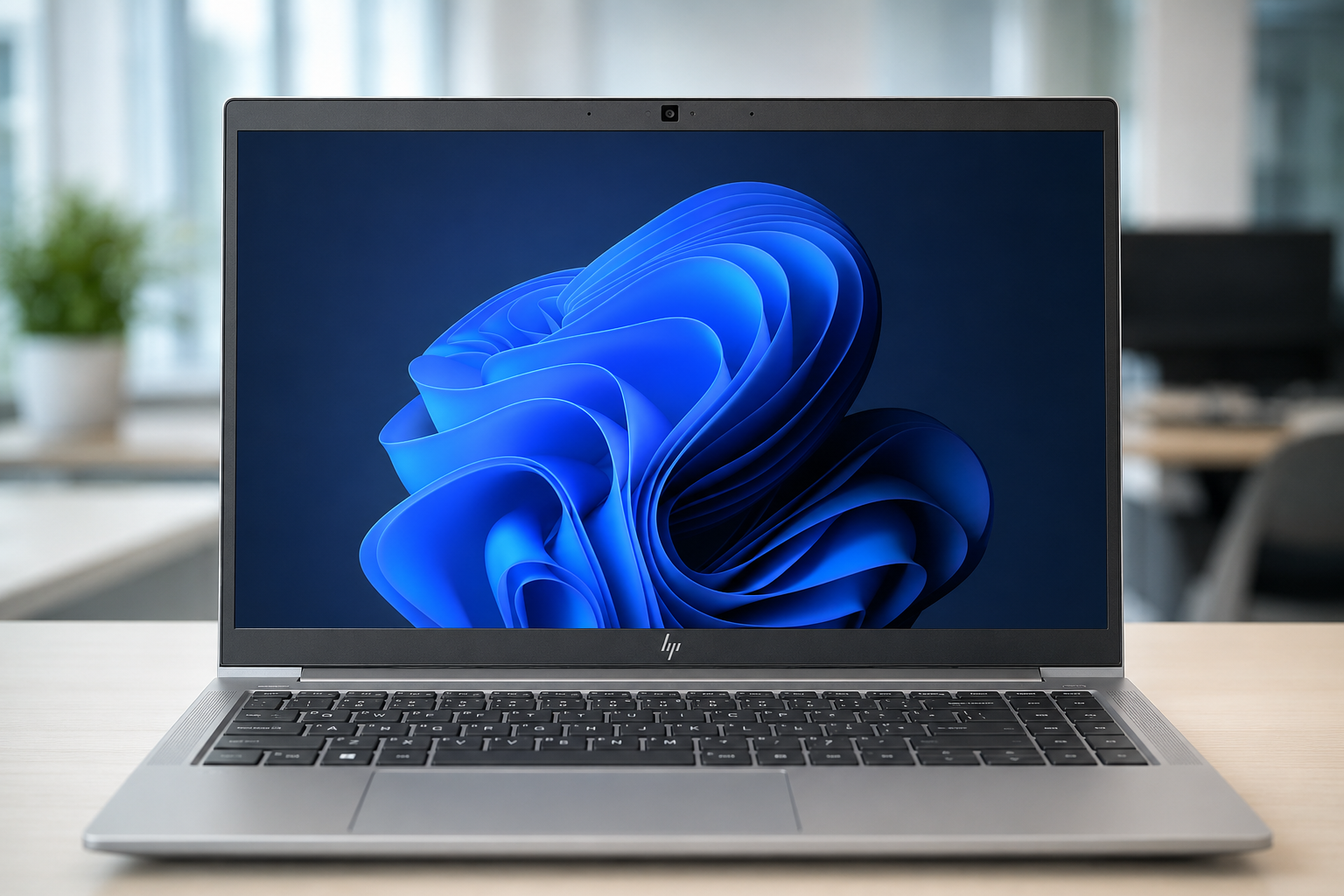
If the camera is completely missing from Device Manager, it is usually disabled in BIOS/privacy controls or not being detected by the hardware. The ZBook often uses Windows’ built-in USB Video Device driver, so a separate HP camera driver may not appear.
Try these steps in order:
- Check the physical camera shutterOpen the privacy slider beside the webcam.
- Press the keyboard key showing a camera with a slash. Try
Fn+ that key if necessary. - Restart the laptop.
- Scan Device ManagerRight-click Start → Device Manager.
- Select View → Show hidden devices.
- Check:
- Cameras
- Imaging devices
- Sound, video and game controllers
- Universal Serial Bus controllers
- Other devices
- Select Action → Scan for hardware changes.
- If the camera appears faded or disabled, right-click it → Enable device.
- Check Windows camera settingsGo to Settings → Bluetooth & devices → Cameras.
- Enable the camera if it appears under Disabled cameras.
- Then open Settings → Privacy & security → Camera and enable:
- Camera access
- Let apps access your camera
- Let desktop apps access your camera
- Check the BIOSRestart and repeatedly press
F10. - Look under Advanced → Built-in Device Options or Security → Device Security.
- Make sure Integrated Camera is enabled.
- Save changes and exit.
- Perform a power resetShut down the laptop.
- Disconnect the charger and all USB devices.
- Hold the power button for approximately 20 seconds.
- Reconnect the charger and start it.
- Install updatesOpen Settings → Windows Update → Advanced options → Optional updates → Driver updates.
- Install available camera, chipset, USB and firmware updates.
- Also install the latest BIOS and chipset updates using HP’s official driver page.
If an unknown camera device appears, choose:
Update driver → Browse my computer → Let me pick → USB Video Device
Microsoft confirms this is the standard compatible webcam driver. Microsoft camera troubleshooting
If the camera remains completely absent after confirming it is enabled in BIOS, the likely cause is a disconnected webcam cable, faulty camera module, or display cable issue. At that point, the laptop needs hardware inspection. HP also recommends checking the privacy shutter first when Windows reports that no camera is attached. HP webcam guidance